
A Complete Guide to Sequence Sending Emails in Gmail
Automate personalized email outreach while keeping each message individual and human.
Overview
Sequence sending is a powerful way to automate email outreach while keeping each message personalized. Instead of blasting a single bulk email to everyone at once, this method lets you send individual emails to multiple recipients — automatically and with controlled timing.
Whether you're reaching out to clients, managing campaigns, or following up with leads, sequence sending helps you stay efficient without losing the human touch.
What Is Sequence Sending?
Sequence sending allows you to send a series of emails to multiple recipients one at a time. Each email is delivered individually, making it feel more personal than traditional bulk messaging.
- Add one or many email addresses
- Send emails individually to each recipient
- Automate the process while monitoring progress in real time
Key Features
1. Flexible Recipient Management
You can easily select recipients from your Google Contacts. By organizing your contacts into labeled lists, you can target specific groups for different campaigns or purposes.
2. Custom Time Delays
One of the most useful features is the ability to set delays between each email. For example:
- 30–60 seconds between sends
- Longer custom intervals if needed
This helps avoid spam filters and makes your outreach appear more natural.
3. Continuous Sending
As long as your computer is running and the extension is active, emails will continue to send automatically. There's no need to manually send each message.
4. Real-Time Progress Tracking
You can monitor how many emails have been sent and how many are remaining, giving you full visibility into your campaign.
How to Use Sequence Sending in Gmail
Step 1: Prepare Your Contacts
- Open Google Contacts
- Create a contact list or label
- Add the recipients you want to include
Step 2: Compose Your Email
- Open Gmail
- Click "Compose"
- Write your email as you normally would
Step 3: Add Recipients
- Import your labeled contact list into the recipient field
- Double-check your list for accuracy
Step 4: Enable Sequence Sending
- Locate the send button in your compose window
- Click the dropdown arrow next to it
- Select "Sequence Send"
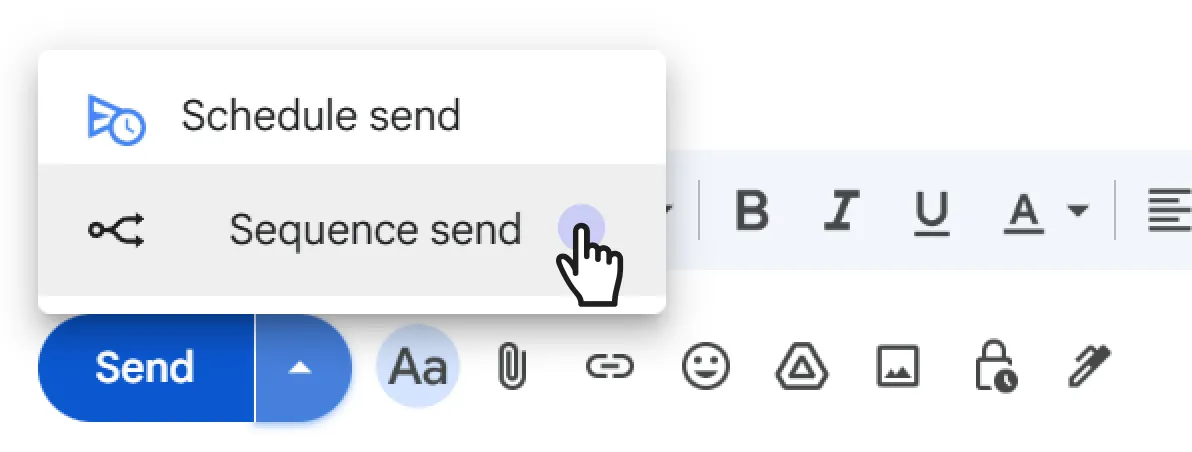
Click the dropdown arrow next to the send button and select "Sequence Send". Step 5: Set Timing
- Choose your preferred delay between emails
- Confirm your settings
Step 6: Start Sending
- Begin the sequence
- Watch the progress as emails are sent one by one
Personalizing Emails with {{name}}
Personalization can make a big difference in how your emails are received. Using the {{name}} placeholder allows you to automatically include each recipient's name, making your messages feel more direct and engaging.
How {{name}} Works
The {{name}} variable pulls the recipient's first and last name directly from your contact list (such as your Gmail or saved contacts).
For example, if your email says:
Hello, {{name}}
And your contact is saved as Paul Wickman, the email will appear as:
Hello, Paul Wickman
What Happens If a Name Is Missing?
If a contact does not have a first or last name saved, the system will automatically remove the {{name}} placeholder. So instead of showing something awkward, it will simply display a clean greeting — ensuring your emails always look professional, even when contact details are incomplete.
Best Practices for Using {{name}}
- Always include a fallback-friendly greeting: Write greetings that still make sense without a name (e.g., "Hello," instead of relying entirely on the placeholder).
- Keep your contact list updated: Adding names to your contacts improves personalization and engagement.
- Avoid overusing placeholders: Use
{{name}}naturally — usually in the greeting or opening line.
Best Practices
- Keep emails personalized:Even though it's automated, write messages that feel human.
- Avoid overly short delays: Spacing emails helps maintain deliverability.
- Test before scaling: Send a few emails first to ensure everything works correctly.
- Organize contacts carefully: Use labels to keep campaigns structured.
Gmail Sending Limits
Gmail enforces a cap on the total number of recipients you can send to within a rolling 24-hour window. This is a limit set by Google — not by Gmail Sense — and it applies to every account regardless of which tool or method you use to send.
Account limits at a glance
Free Gmail
500
recipients per 24 hours
Standard personal Gmail accounts (@gmail.com).
Google Workspace
2,000
recipients per 24 hours
Business or organization accounts on any Workspace plan.
How the limit works
The 24-hour window is rolling, not a fixed midnight reset. This means if you send your 500th email at 3 PM on Monday, your quota does not reset until 3 PM on Tuesday. Emails sent earlier in the window expire first and free up capacity gradually as time passes.
What happens when you hit the limit
When the limit is reached, Gmail will reject any further send attempts until enough time has elapsed for earlier sends to expire from the window. If a sequence send fails mid-way, it almost always means the limit has been reached. There is no penalty — simply wait and resume once the quota rolls over.
How Gmail Sense tracks this
The extension keeps a local count of emails sent through it over the past 24 hours and shows it in the popup. This counter is an estimate — it only tracks sends made through Gmail Sense, not emails sent directly through Gmail or other tools. Use it as a guide, not an exact figure.
Tips to stay within the limit
- Spread sends across the day — instead of sending to 500 contacts at once, split them into smaller batches over several hours.
- Use longer delays between emails — a 60-second interval stretches a 500-email campaign over roughly 8 hours, making it far less likely to trigger any filters.
- Consider Google Workspace — if your outreach regularly requires more than 500 recipients per day, upgrading to a Workspace plan raises the cap to 2,000 and also improves deliverability and sender reputation.
Final Thoughts
Sequence sending bridges the gap between automation and personalization. It allows you to scale your outreach without sacrificing quality or control. By using structured contact lists, timed delays, and real-time tracking, you can run effective email campaigns directly from Gmail with ease.
If used thoughtfully, this approach can significantly improve engagement while saving you hours of manual work.